360 Image

Turn around, get a 360° photo.

Capture everything around you in one photo. Just turn around with your iPhone or iPad: the app takes the shots and stitches them into a 360° photo, right on your device.

for iPhone and iPad

  • iPhone
  • iPad
  • LiDAR
  • Photography
  • 360
  • Free
  • No account
  • No ads
  • No in-app purchases
  • No subscription
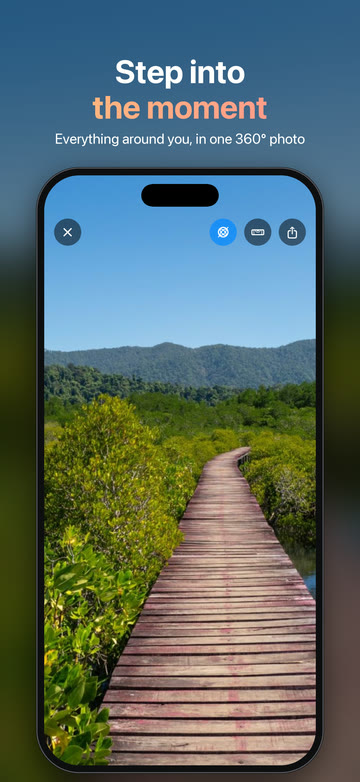
“Step into the moment — everything around you, in one 360° photo”, over an iPhone showing a 360° photo of a wooden boardwalk running through mangroves towards green hills.
  1. Take a 360° photo

    Follow the dots

    Turn around on the spot with your iPhone. Put the yellow dot in the circle and hold still: each shot takes itself.

  2. Take a 360° photo

    Keep it level

    Line up the white marks with the line around the circle. It turns green when the iPhone is straight.

  3. View a 360° photo

    Move your iPhone

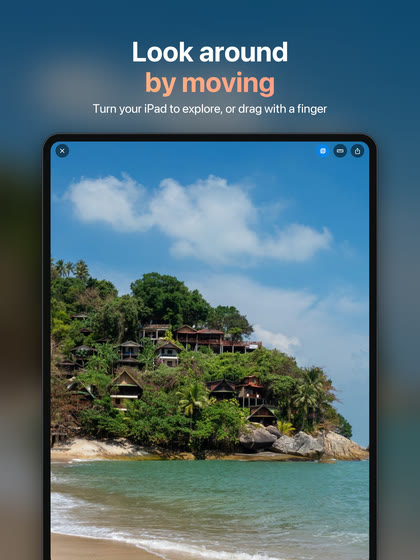
    Point your iPhone where you want to look. The photo surrounds you, as if you were looking through a window.

  4. View a 360° photo

    Drag to look around

    Swipe with one finger to look in any direction: up, down, and all the way around.

  5. View a 360° photo

    Pinch to zoom

    Spread two fingers to zoom in. Pinch them together to zoom out.
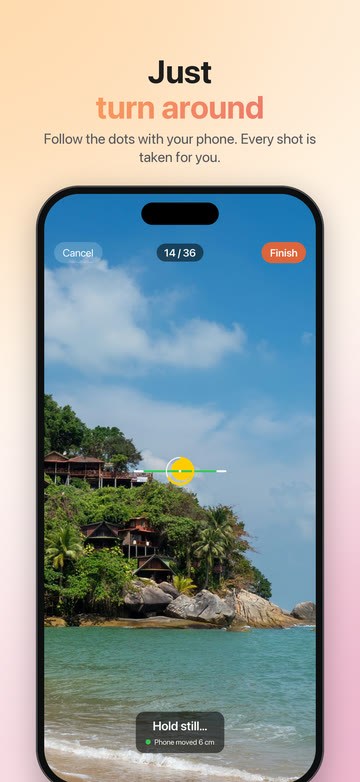
  • “Just turn around — follow the dots with your phone. Every shot is taken for you.” The capture screen over a beach: the yellow dot inside the circle, shot 14 of 36, and “Hold still…”.
  • “Look around by moving — turn your iPad to explore, or drag with a finger.” The viewer on an iPad, showing houses on a hillside above a beach.
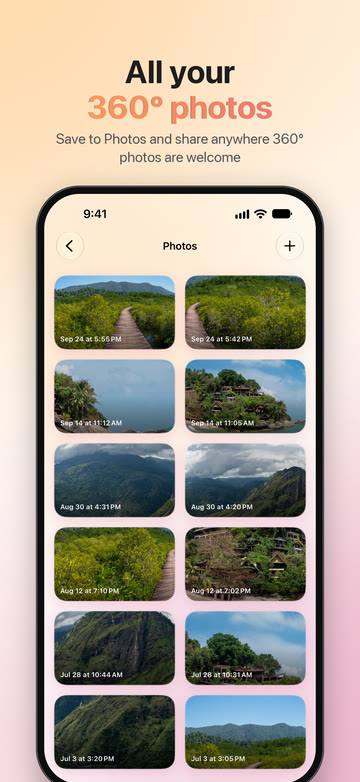
  • “All your 360° photos — save to Photos and share anywhere 360° photos are welcome.” The gallery: two columns of photo cards, each with its date.
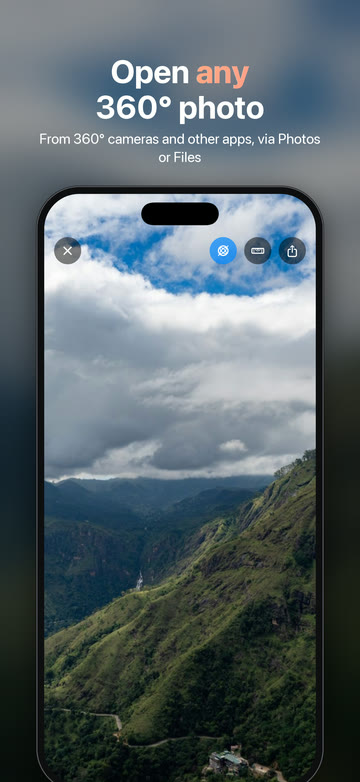
  • “Open any 360° photo — from 360° cameras and other apps, via Photos or Files.” The viewer showing clouds over a steep green mountainside.

Saved photos keep their 360° information, so anything that shows 360° photos shows them as a sphere. Devices with LiDAR give the best results.